Skip to content

Departments Management

Estimated reading time for this article: 15 minutes

Departments are the foundation of organizational structure in Beem, defining how members are grouped, how permissions and communication flow, and how reporting and management are organized, and proper department management ensures clarity, scalability, and efficient administration, while this section explains how administrators can create, search, edit, delete, and manage departments individually or in bulk.

Create Departments

Creating departments allows administrators to design the organizational hierarchy and logically group members into teams, divisions, or units. This is typically one of the first steps during organization setup or restructuring.

Steps:

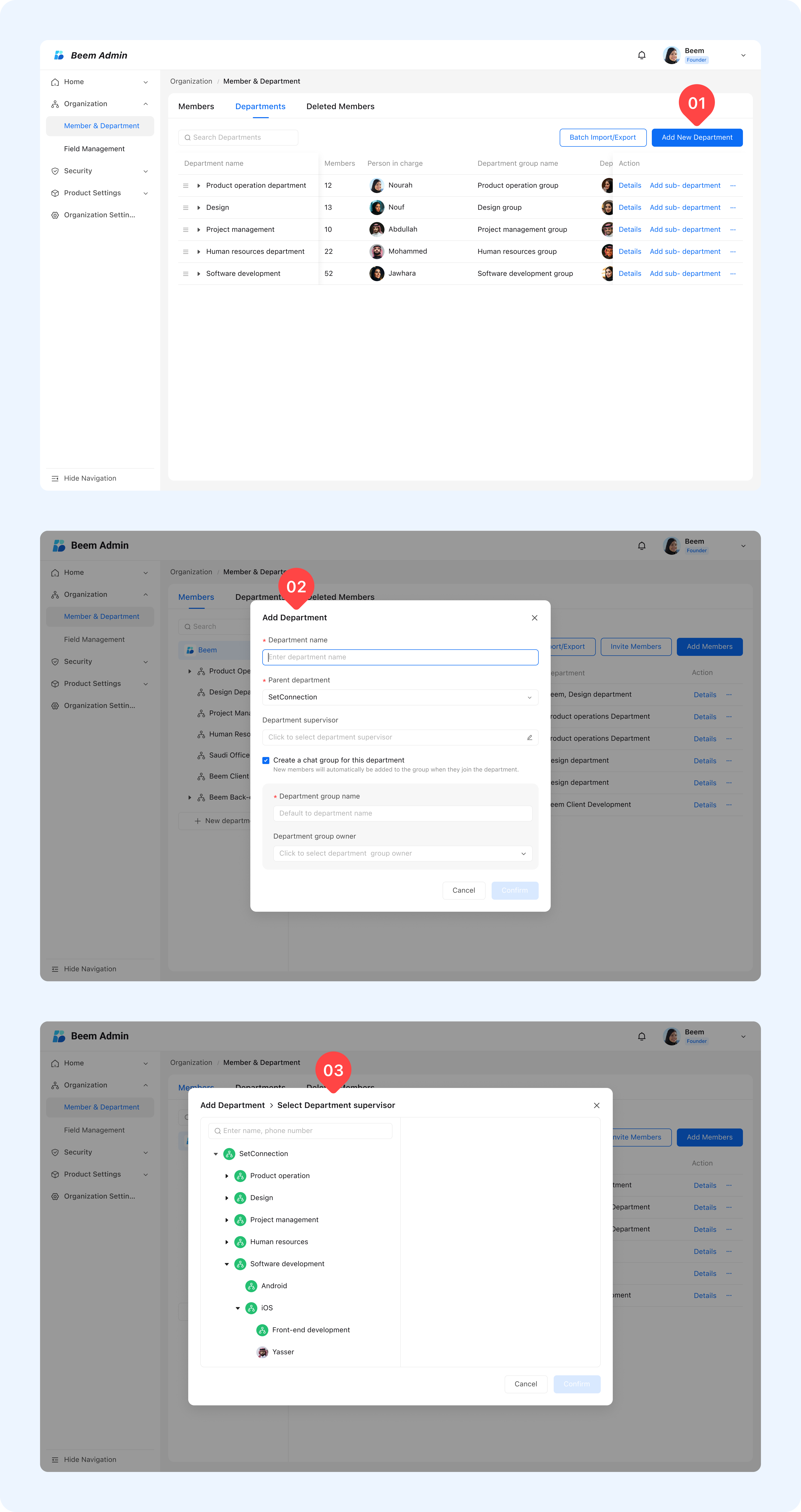
  1. From the Admin Suite, navigate to Members & Departments, then select Departments from the top bar and click Add Departments.
  2. When you click Add Departments, a form will appear where you need to fill in the fields such as: Department Name, Parent Department, Department Supervisor.
  3. There is also an option to create a group for this department; if you check the box, a department group will be created automatically. For more information, please visit “Group-Related”.

WARNING

Tip: Each member must belong to at least one department to join the organization.
undefined

Search Departments

Searching departments helps administrators quickly locate specific teams, review their members, and perform administrative actions without navigating complex hierarchies.

How it works:

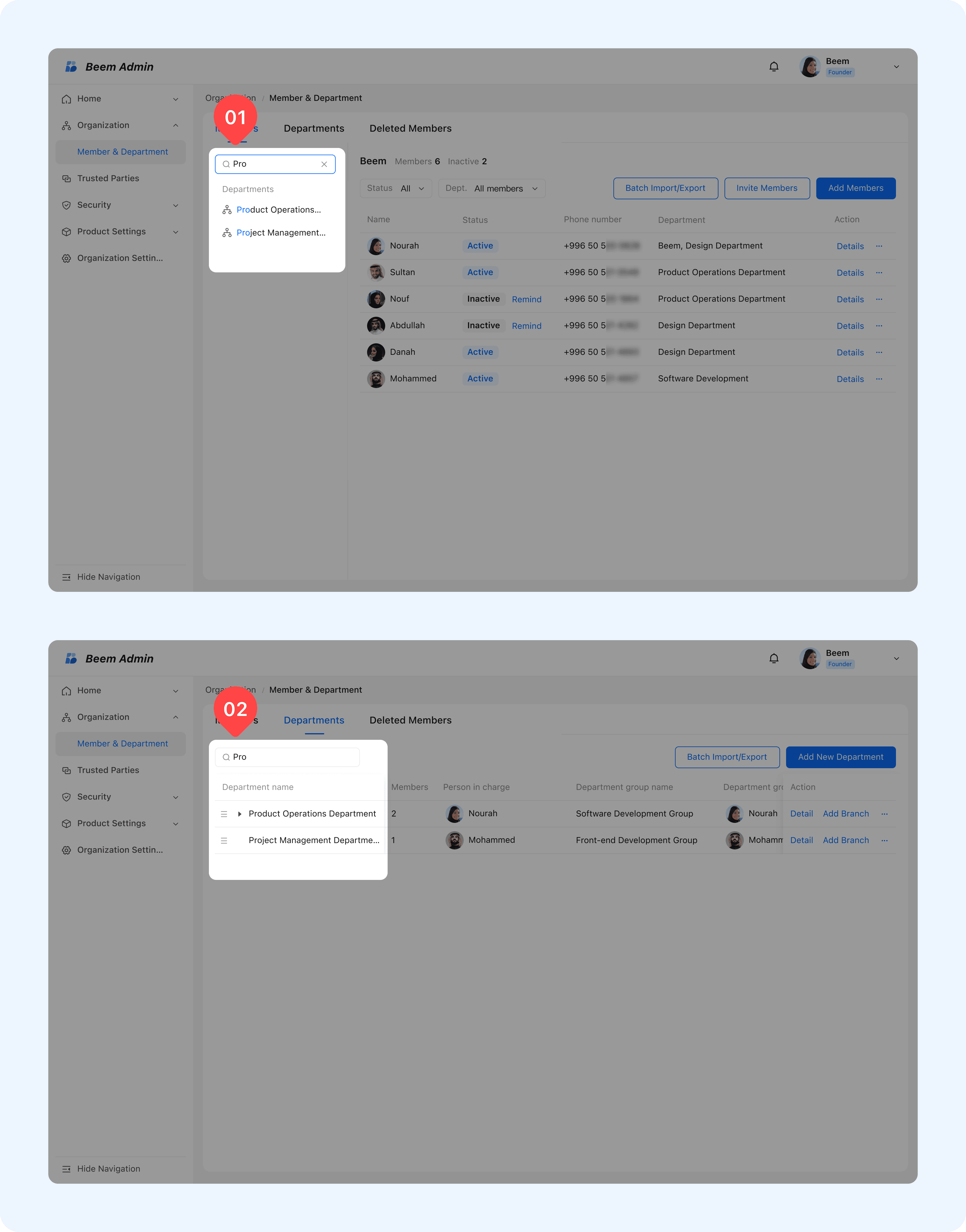
  1. Admins can search employee and department lists by name using fuzzy matching, allowing partial matches, to locate departments efficiently.

undefined

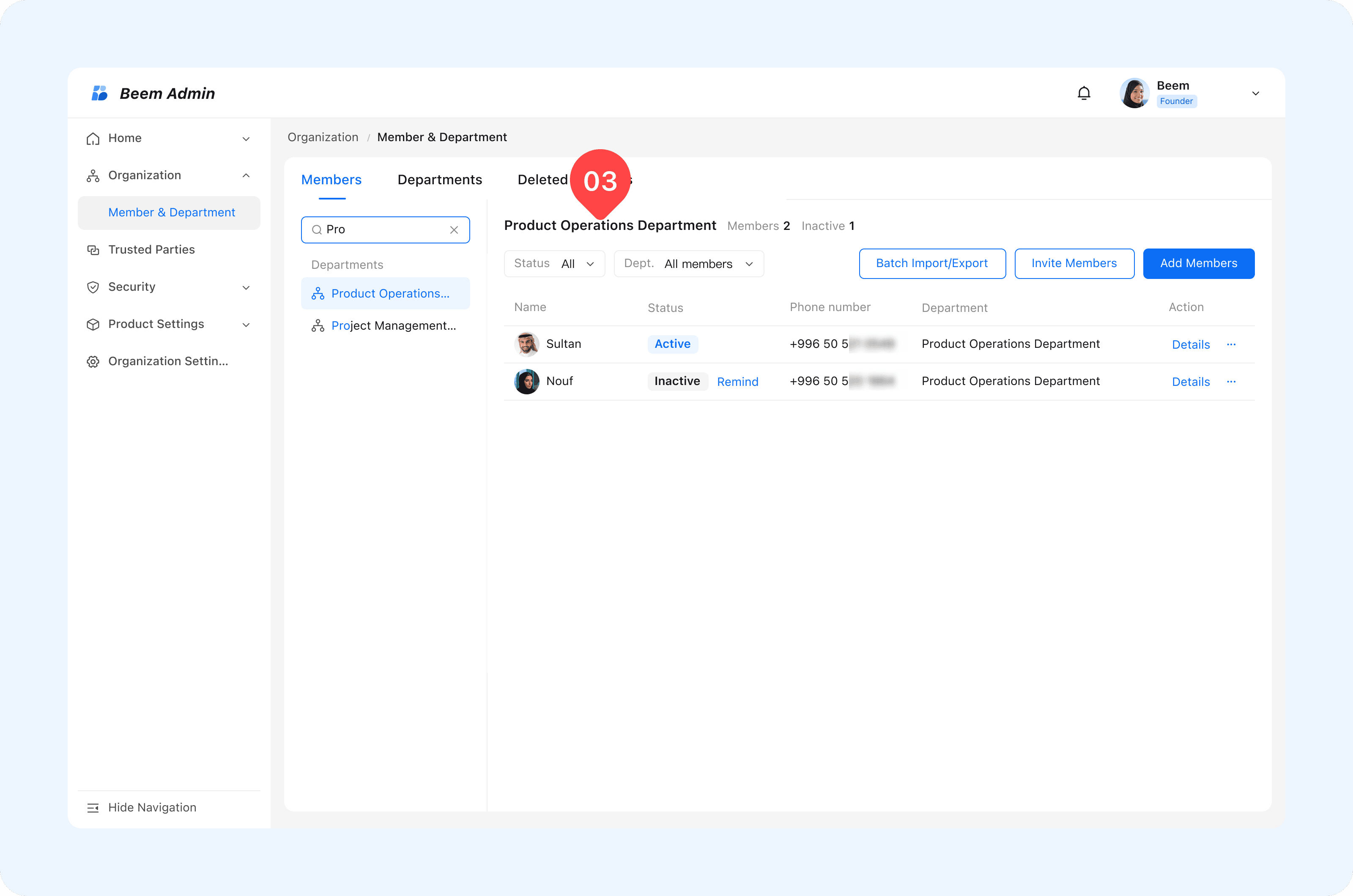
  1. On the member list page, after locating and clicking the target department, the system will automatically filter and display all members within that department, making it easy to view department member information.

undefined

Edit Department

Editing departments allows administrators to keep organizational data accurate as teams evolve. This includes renaming departments, changing reporting structures, or updating department leadership.

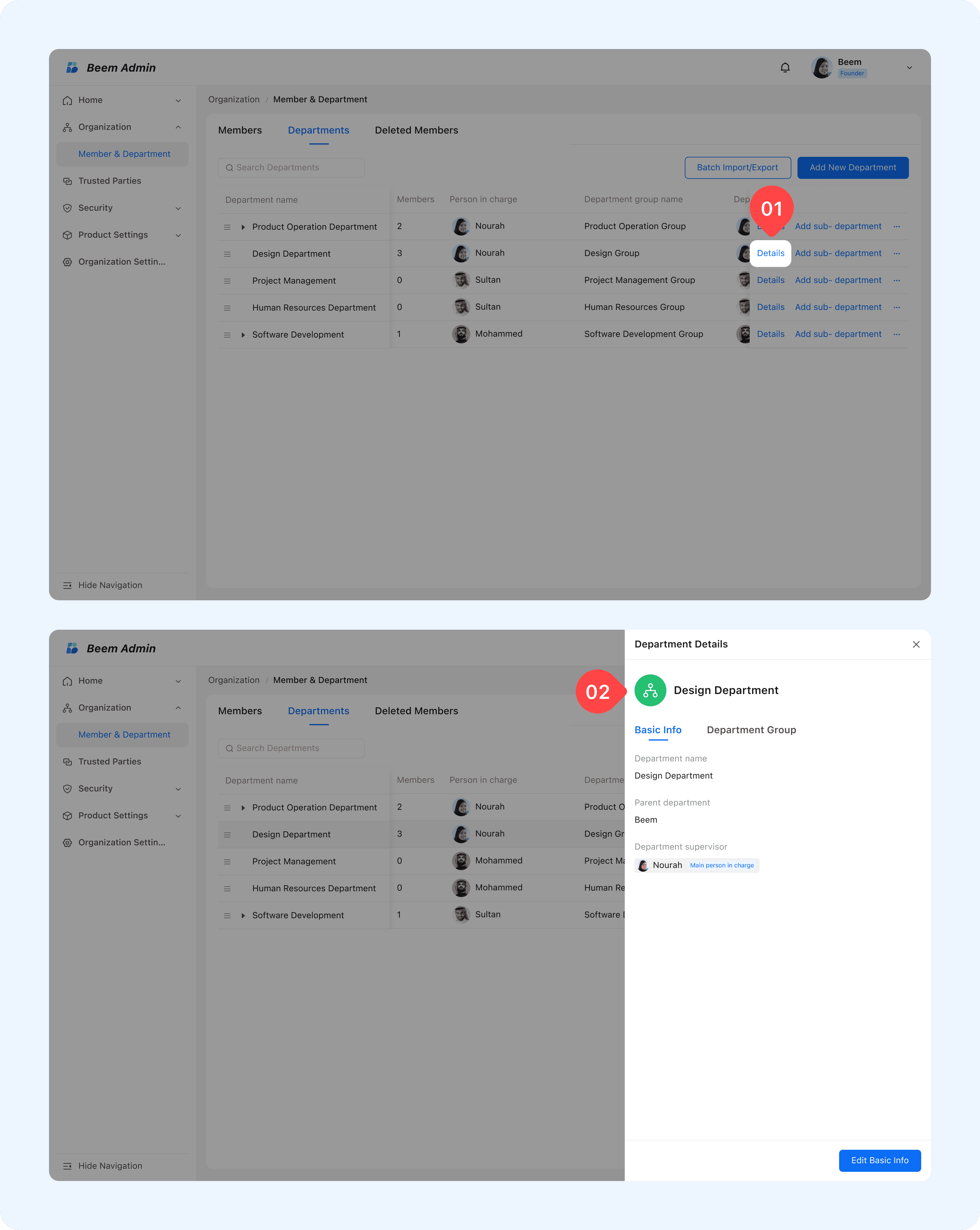
  1. Administrators can edit the information of existing departments, including the Department Name, Parent Department, Department Supervisor.
  2. Select the department you want to modify, then choose (Edit) and fill in the required information. Once confirmed, the updated information will be automatically synchronized with all contacts.

undefined

Delete Department

Deleting a department is typically required during organizational restructuring, mergers, or team consolidation. This action ensures outdated structures do not remain in the system.

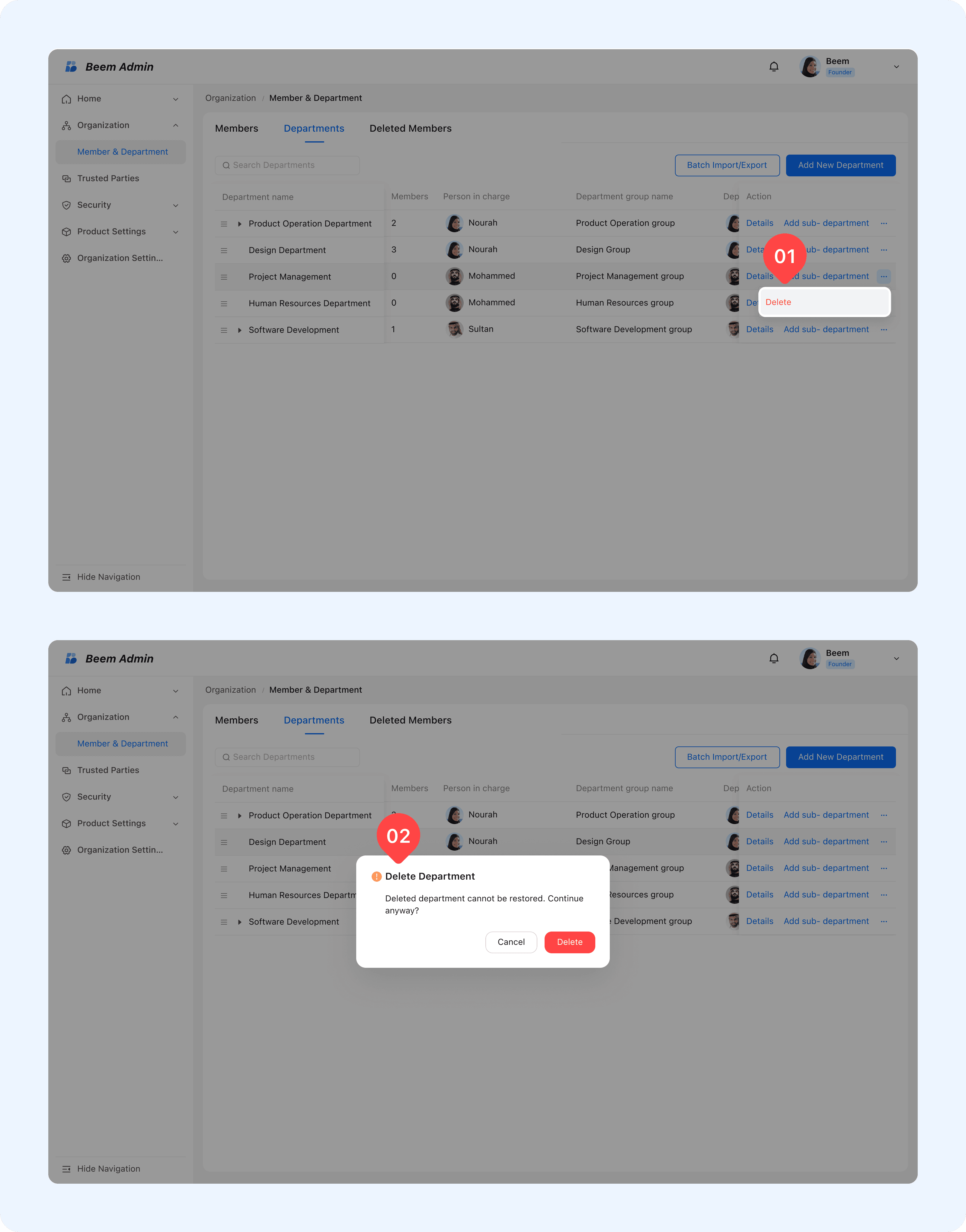
  1. When a department needs to be disbanded due to organizational structure adjustments or other reasons, administrators can delete the department by selecting the targeted departments and choose delete.

undefined

  1. To ensure smooth management of departments, please review the following prerequisites before making changes:
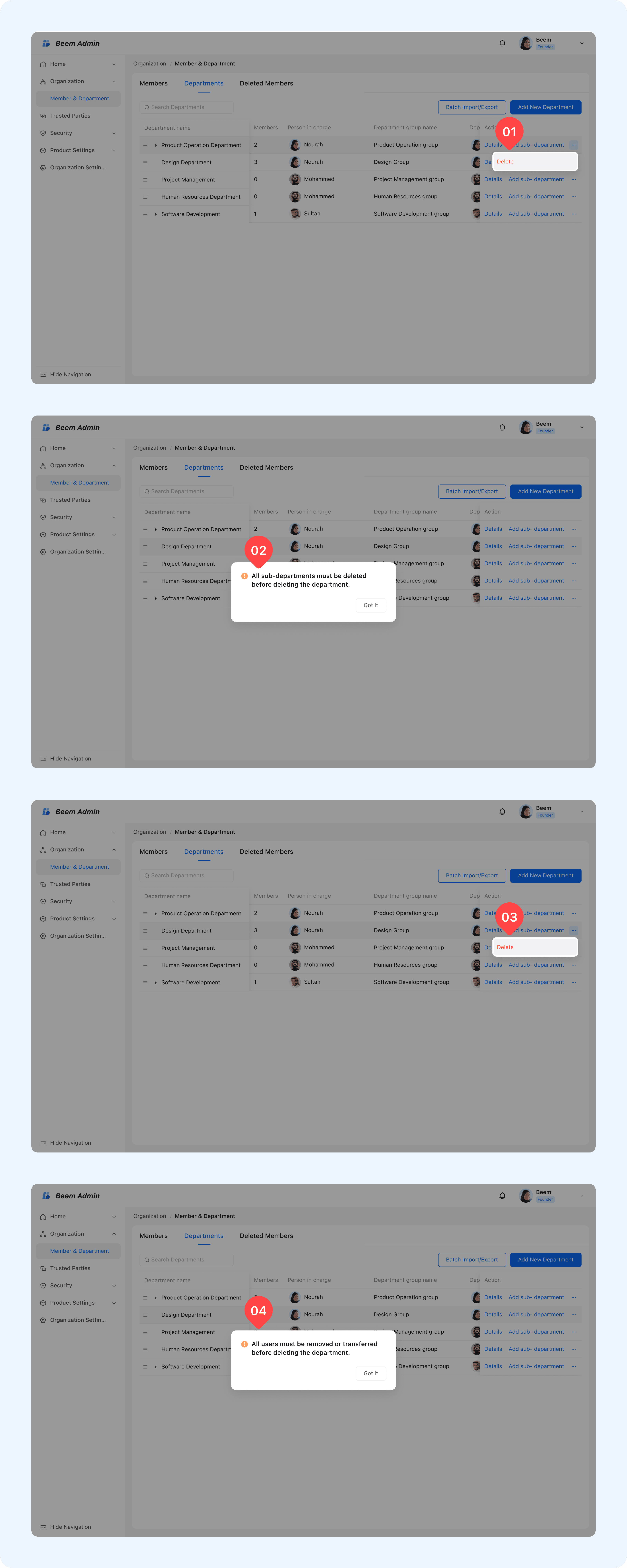
    1. All members within the department must be removed or reassigned.
    2. All sub-departments must be deleted first.

undefined

Import Departments

Batch importing departments accelerates the initialization of organizational structures by allowing multiple departments to be created at once.

Steps:

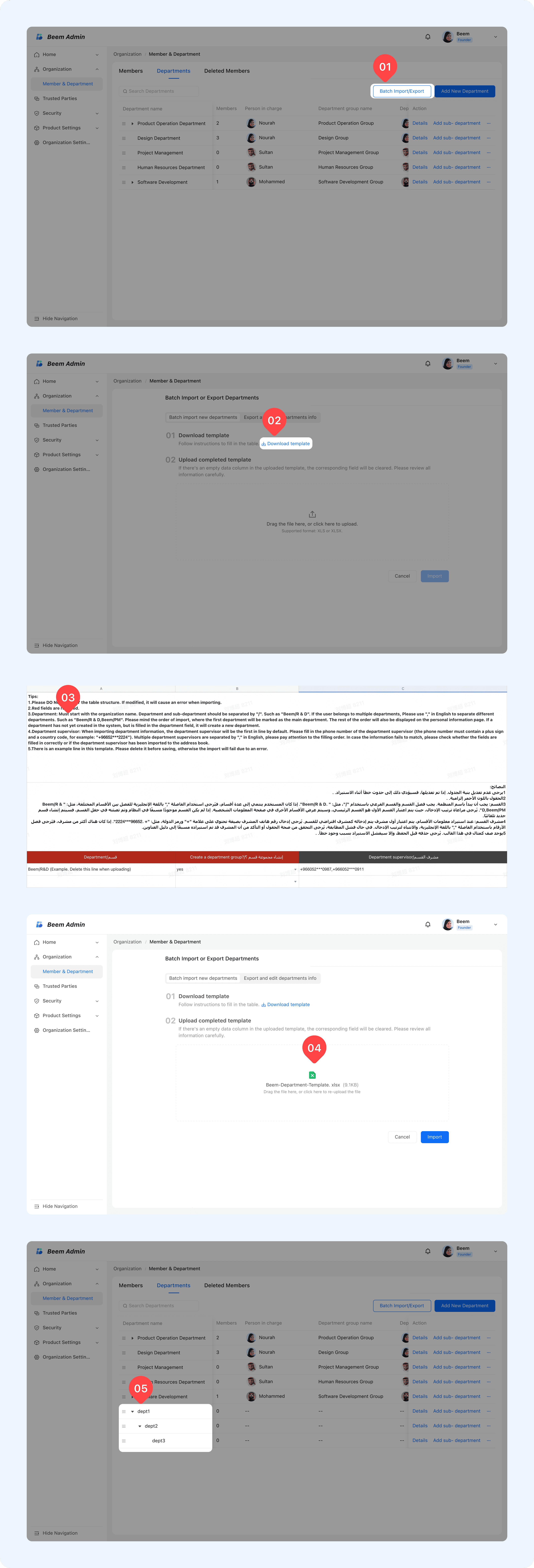
  1. From the departments page select Batch Import / Export.
  2. Download the system-provided import template.
  3. Fill in the required fields according to the template.
  4. Upload the template and the system will validates the data and initializes members and departments efficiently.

undefined

Export and Modify Departments

This feature enables administrators to update department information efficiently without manual edits.

Steps:

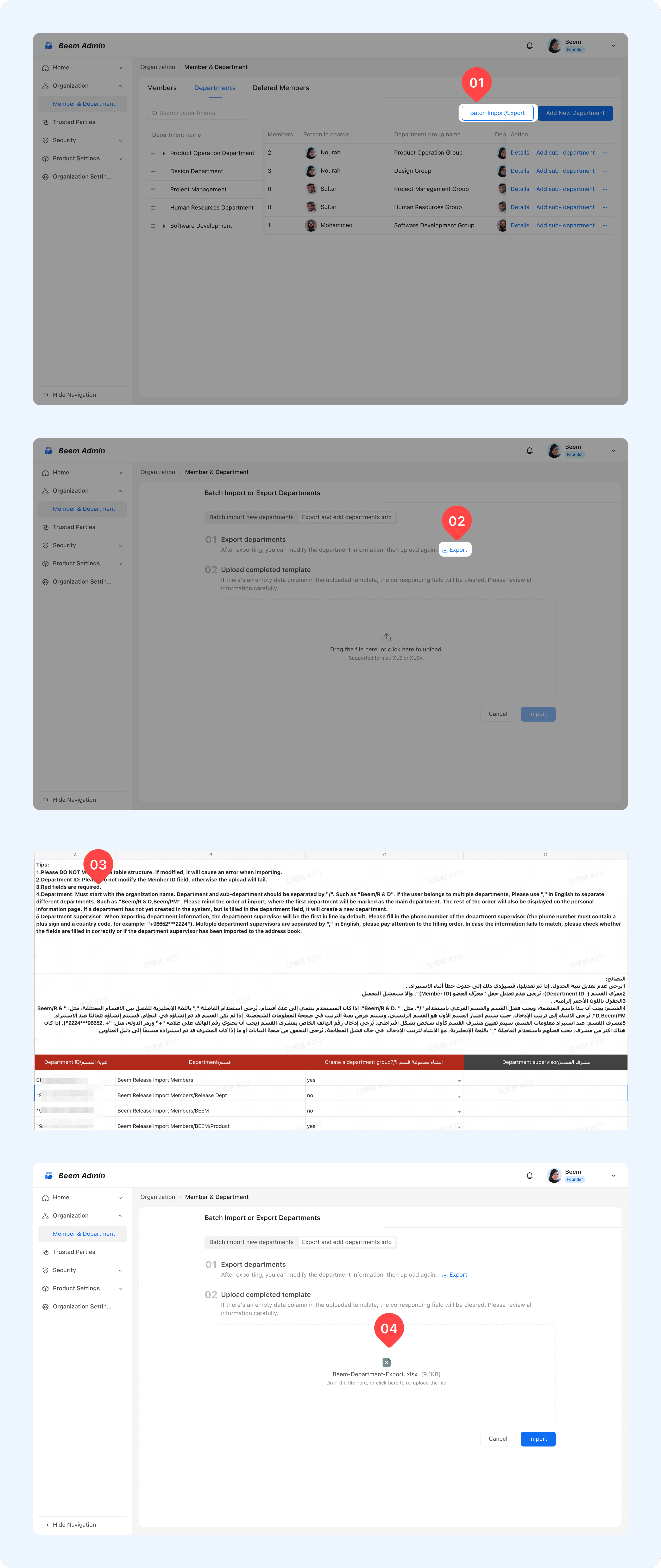
  1. From the departments page select Batch Import / Export.
  2. Export department data in XLS or XLSX format.
  3. Modify fields such as department name or department supervisor.
  4. Upload the template and the system will validates the data and initializes members and departments efficiently.

WARNING

Note: If a department belongs to a group, all related personnel data is updated automatically, ensuring consistency and saving significant administrative time.
undefined