access_timeEstimated reading time for this article: 10 minutes
Trusted parties refer to two enterprises establishing a connection through Beem to achieve secure and efficient cross-enterprise collaborative work.
After the administrator configures the associated organization, shared members between the two enterprises can engage in cross-enterprise collaborative work such as daily communication, project collaboration, learning and training and process sharing without the need to add each other as external contacts and the enterprise can establish a trust relationship with up to 30 other organizations.
Establishing Trusted Party Relationships with Other Organizations
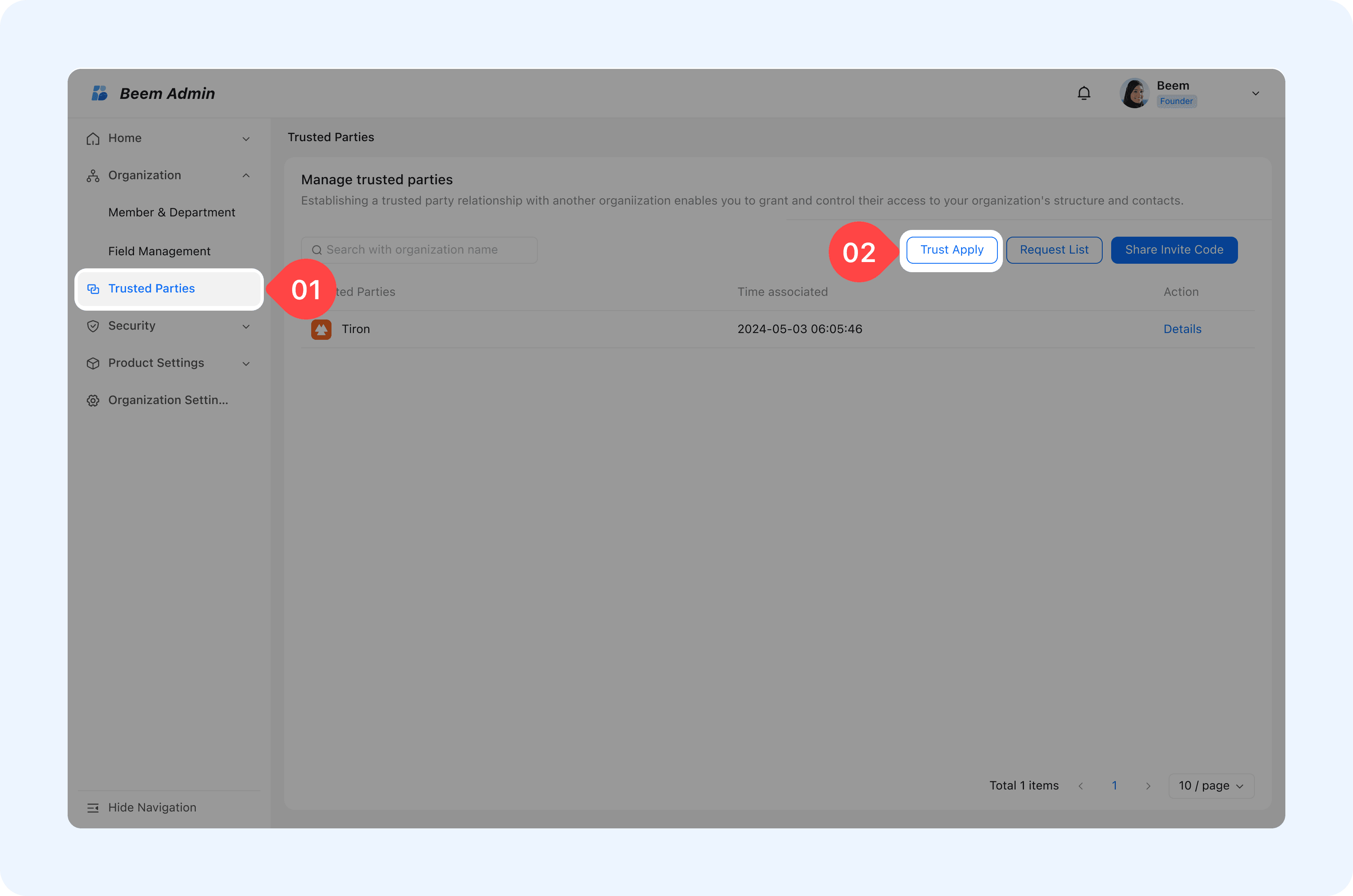
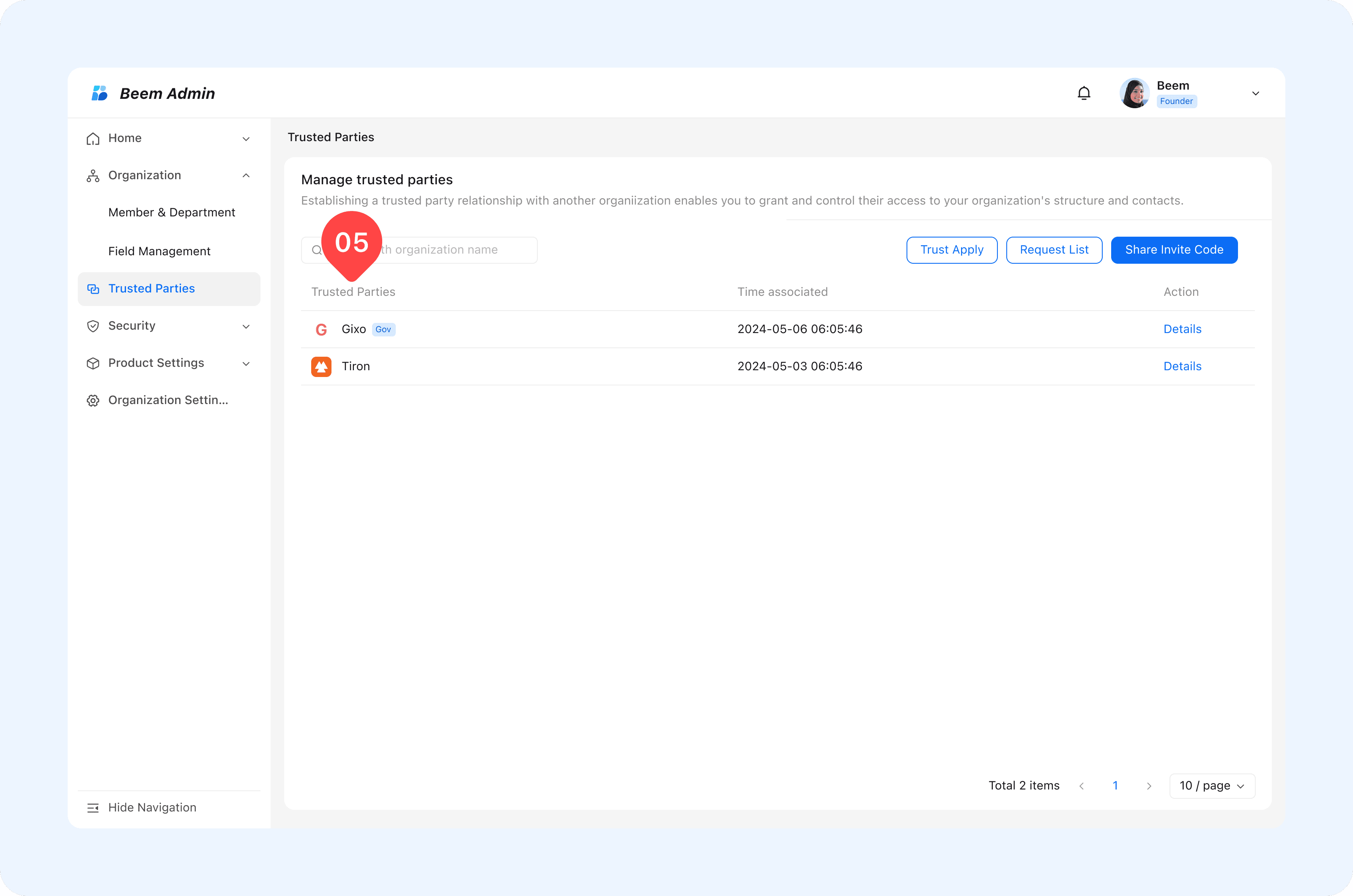
Open the Trusted Parties page in the Admin Suite and click the Trust Apply button.
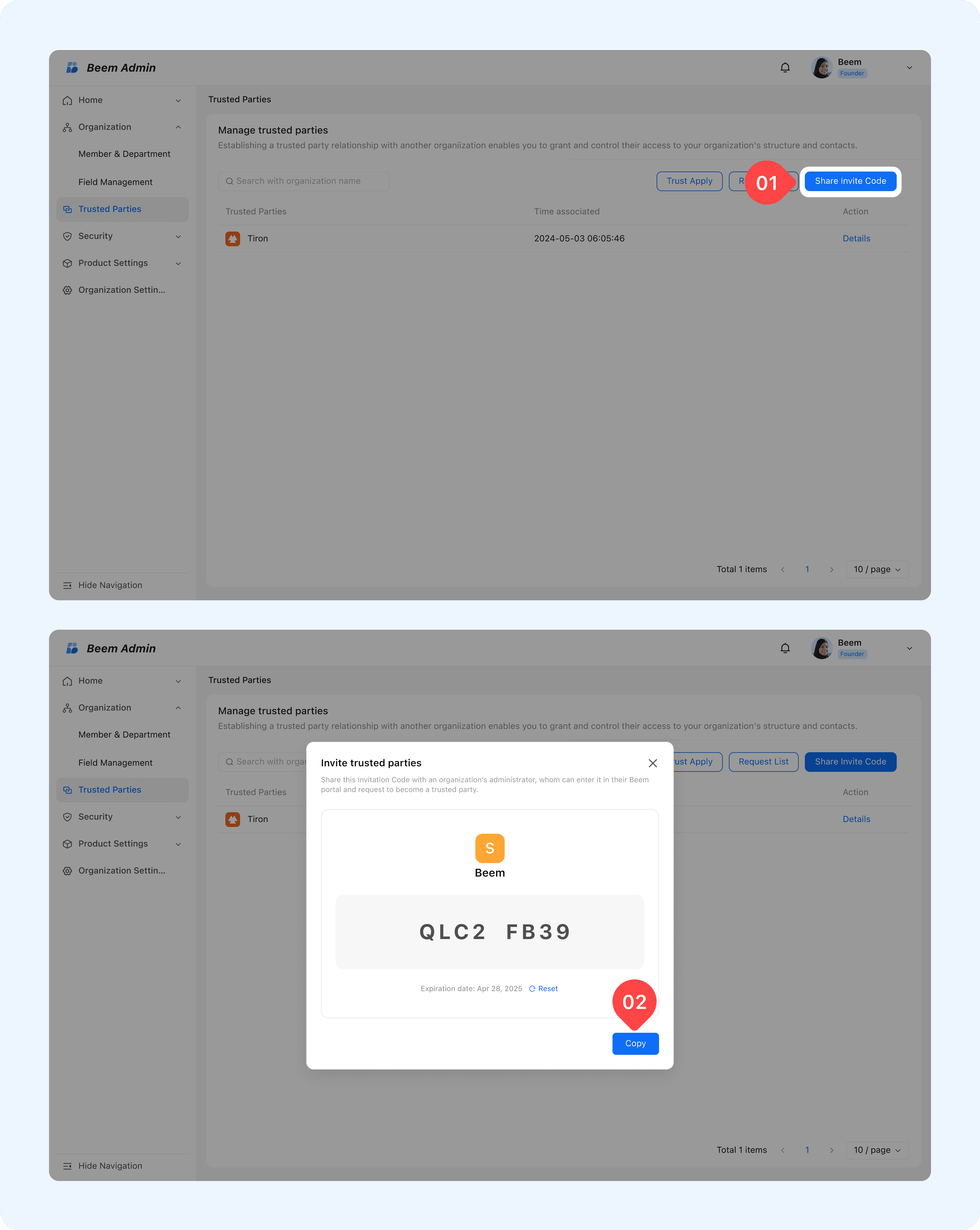
To view the interconnection invitation code, please click Share Invite Code
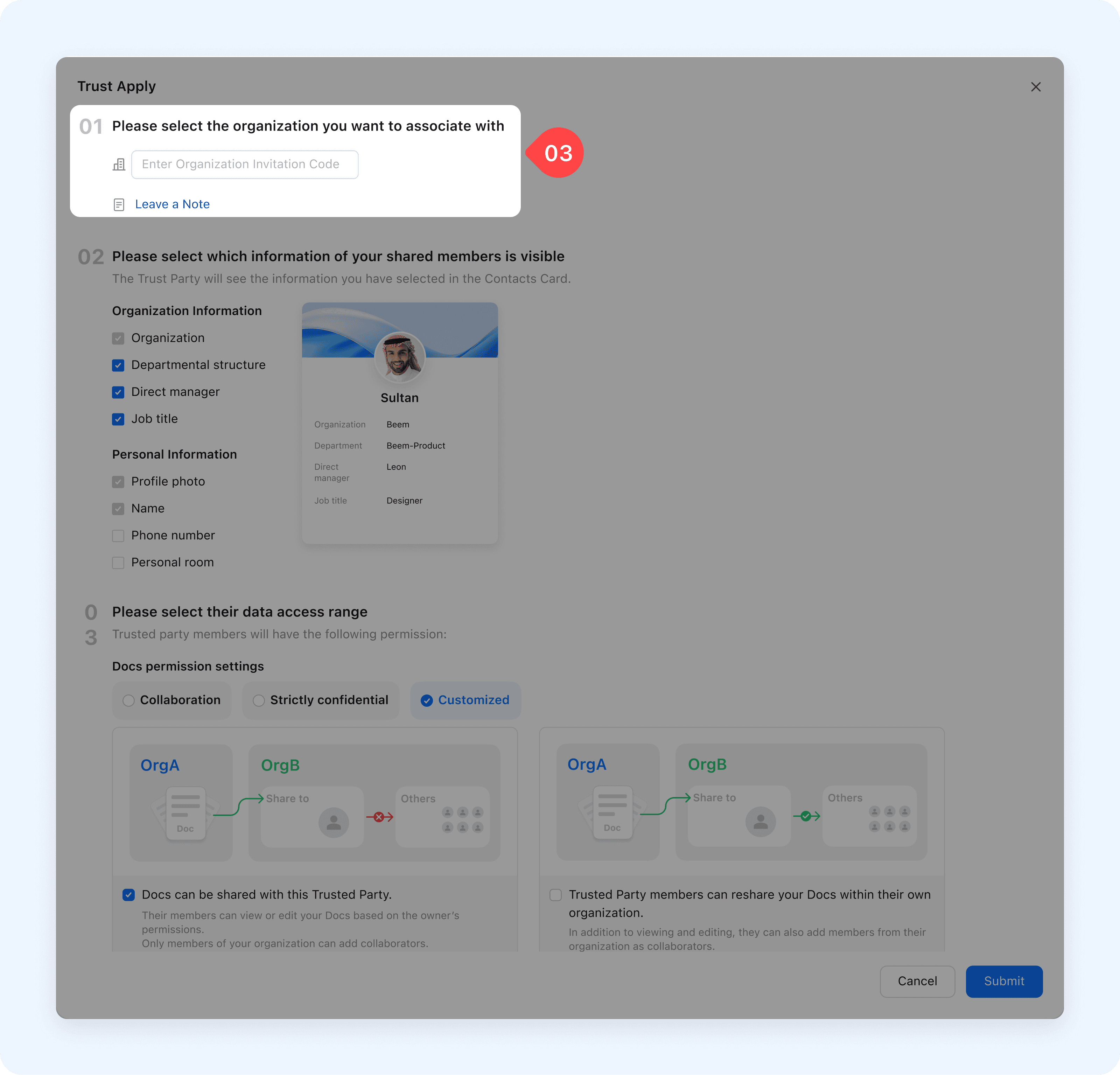
Enter the Share Invite Code of the other organization, set the display information of our members, and configure Docs permissions.
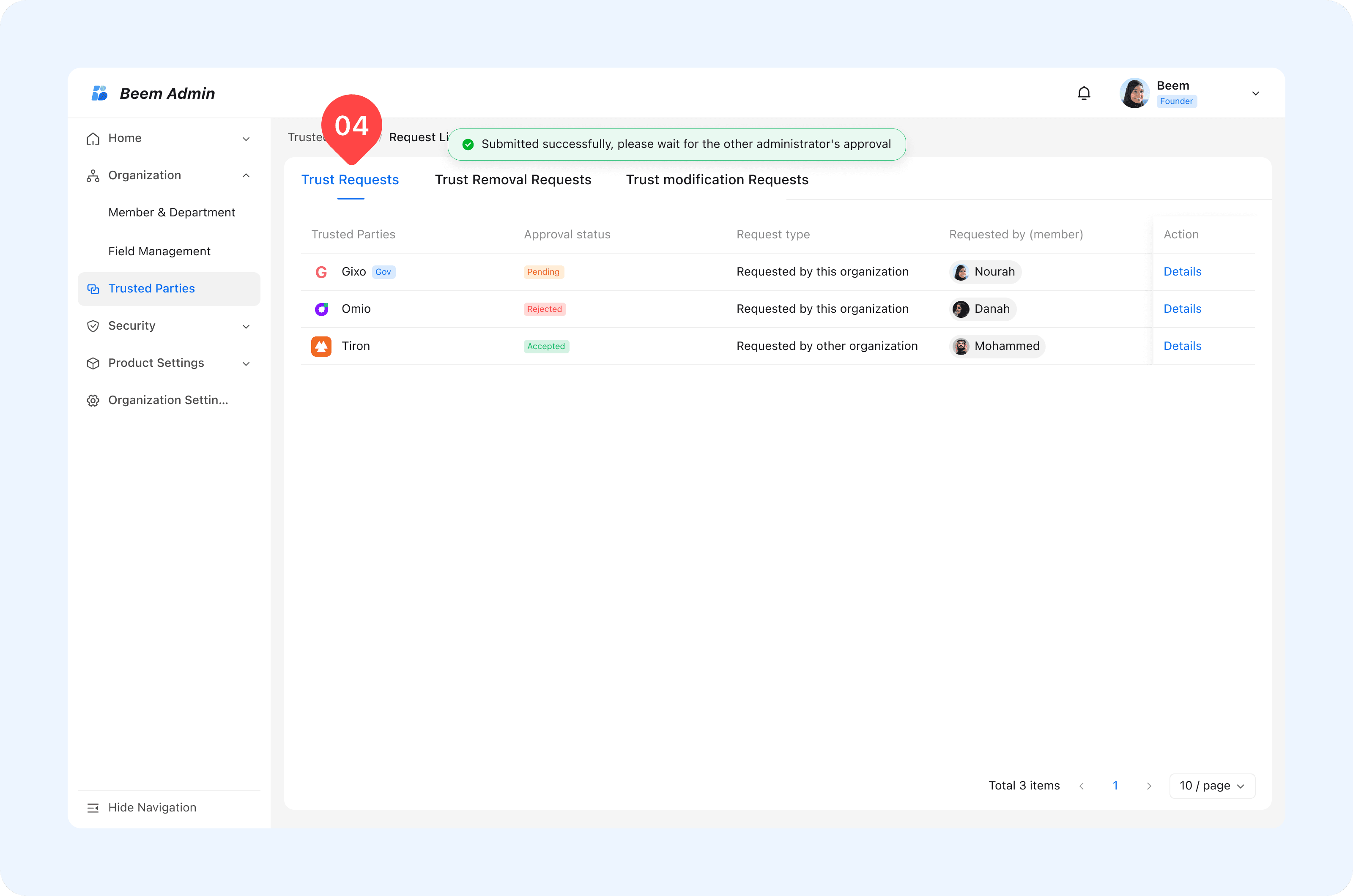
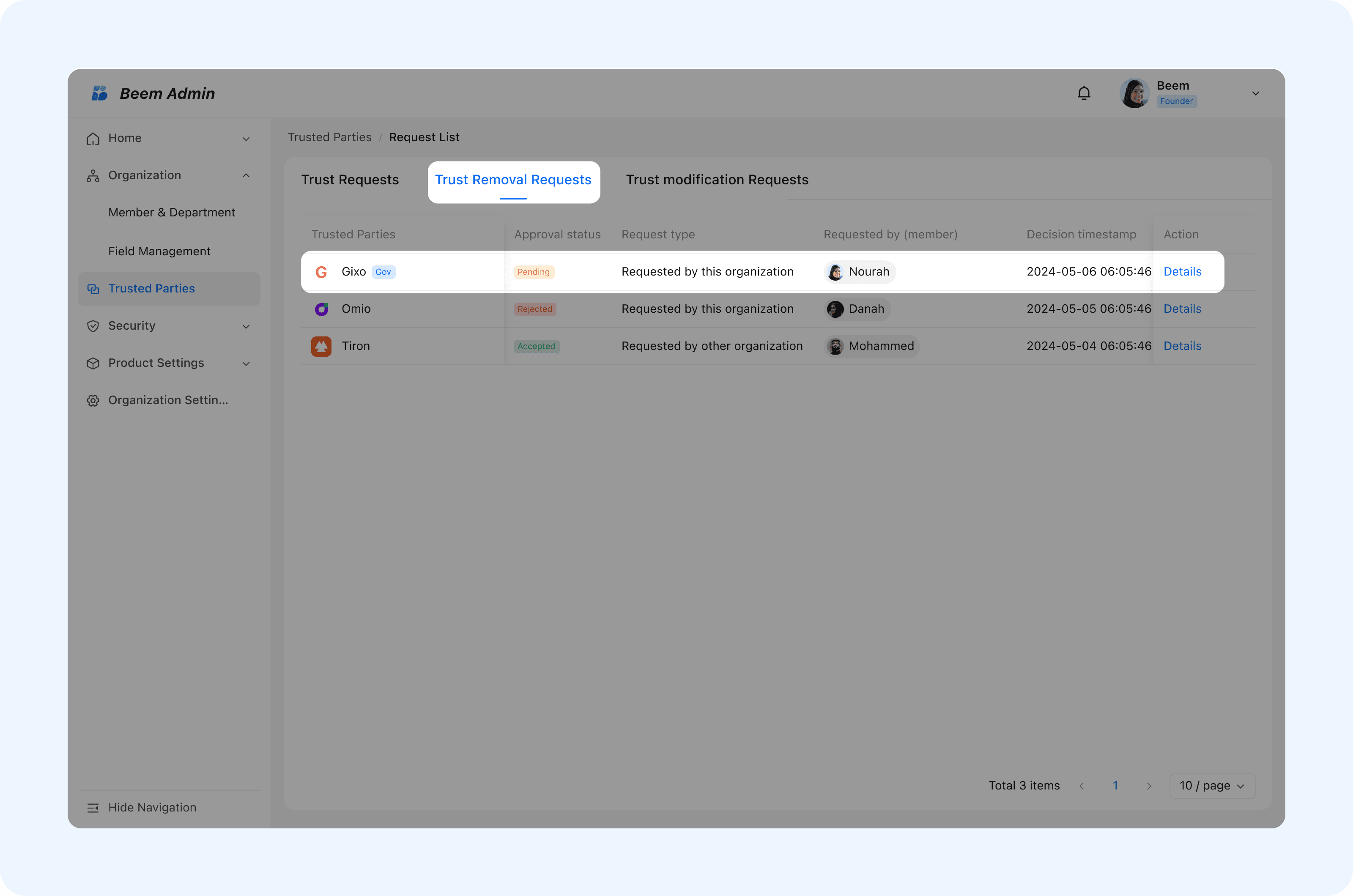
After configuration, send the request, and you can view the requests record in Request List > Trust Requests.
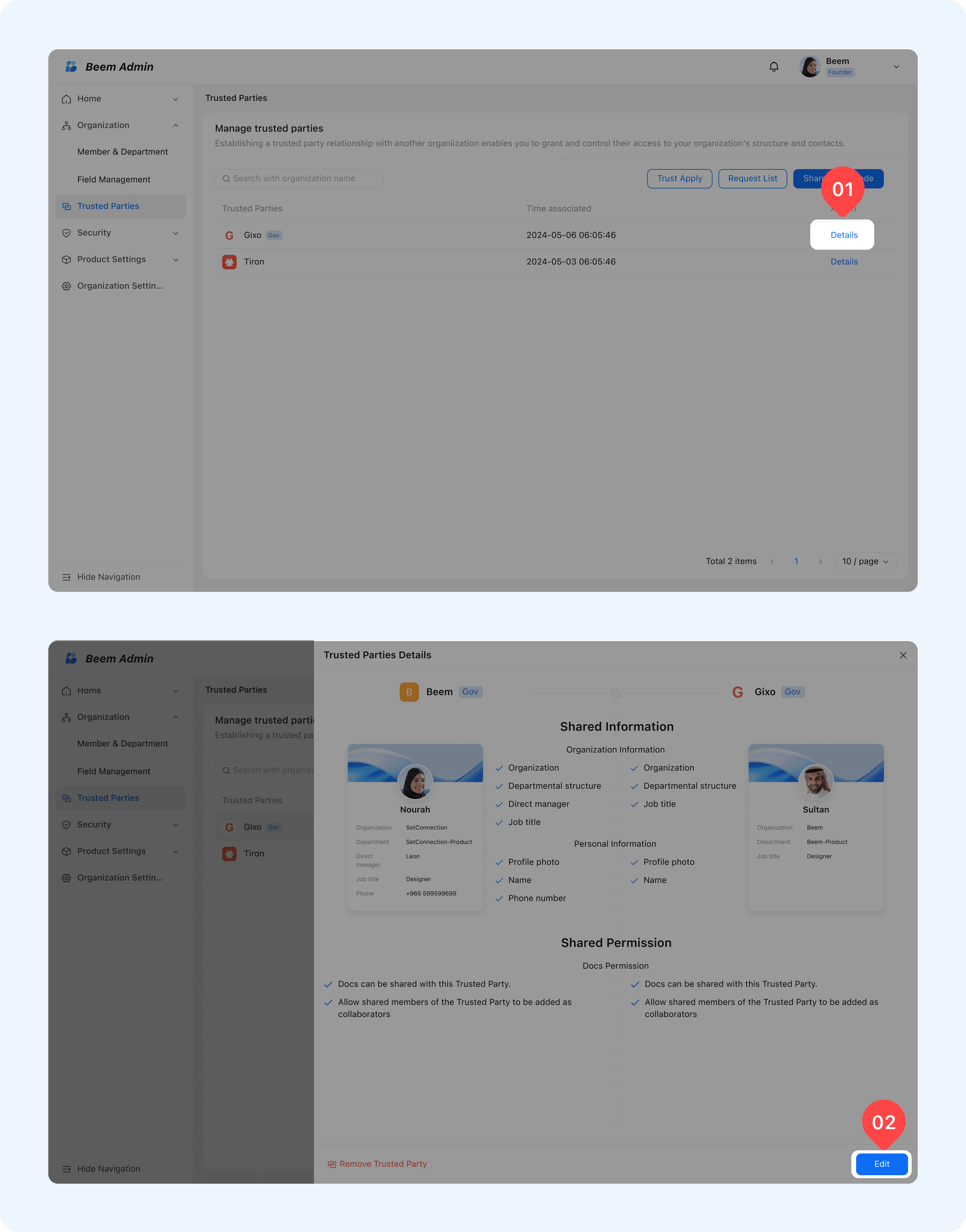
After the other party's approved, you can view the details of the association with the organization on the Trusted Parties page.
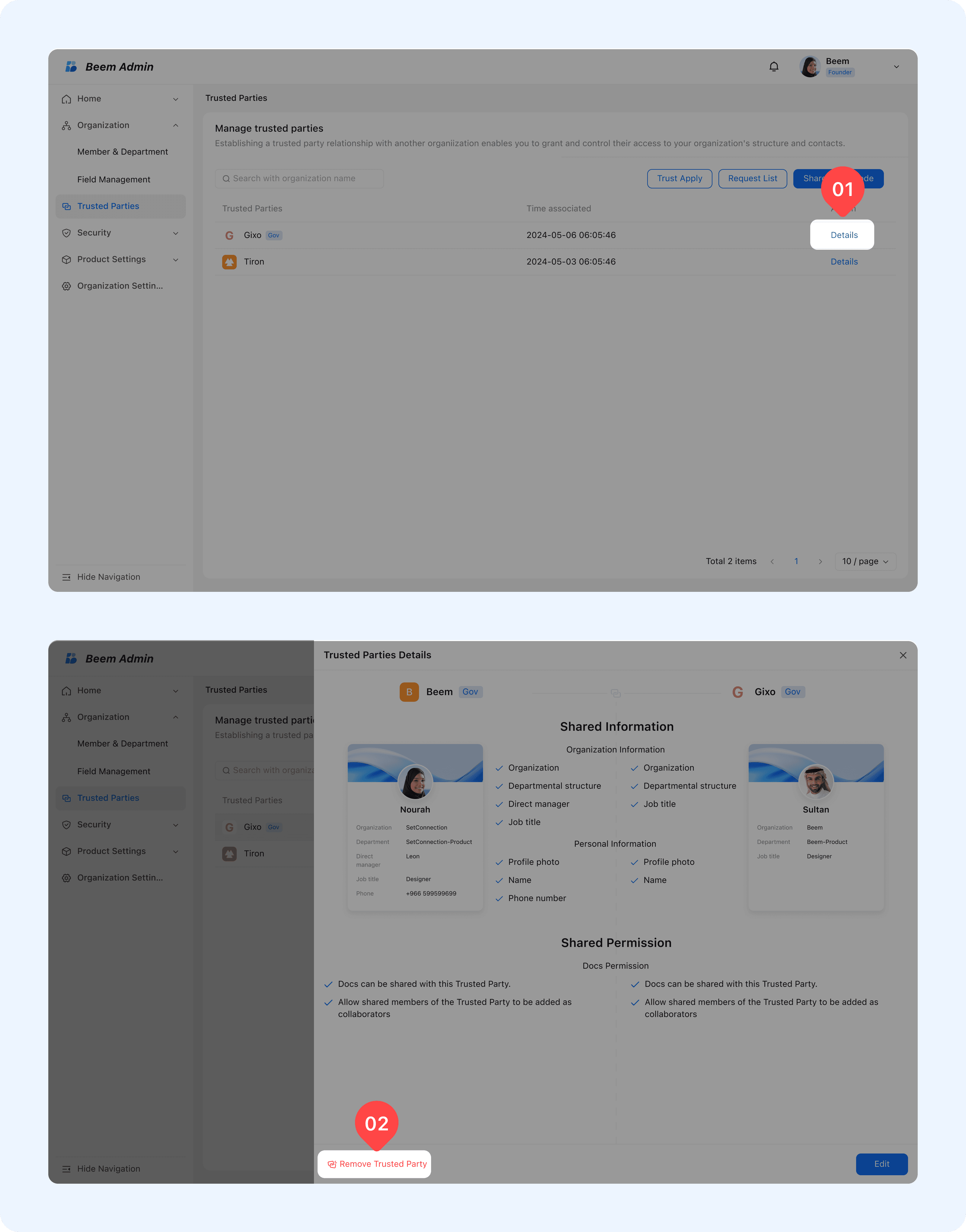
If you want to modify Shared Information or Shared Permission, click Details to view the associated status in effect. Click Edit to adjust the content.
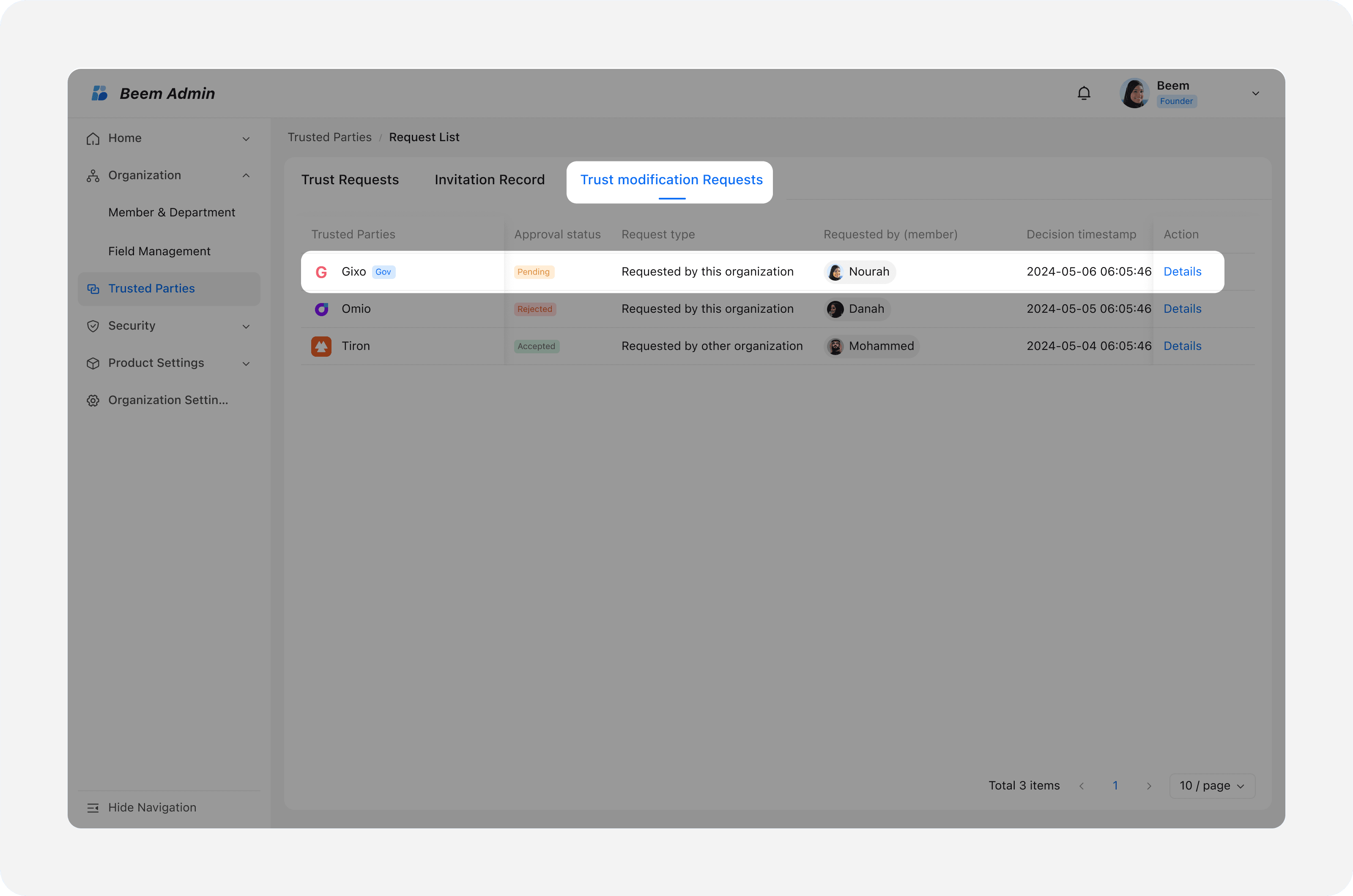
After submitting the application, you can view the application record in Request List > Trusted Modification Requests.
Taking Organization A and External Organization B as an example, Organization A and Organization B have associated "trusted parties", and the administrator of Organization A has configured that its member Mohamed can view member Abdullah of Organization B.
Member Mohamed can view the profile page of Abdullah, but the information on the profile page that Mohamed can see is set by the Organization B's admin.
The fields displayed externally on the profile page are set by each organization.
By default, only the name field and organization name field are open.
Member communication and collaboration within trusted parties
Member Mohamed can communicate and collaborate without adding Abdullah as an external contact:
Initiate a one-on-one chat directly with Abdullah.
Add Abdullah directly to the group chat.
Directly invite Abdullah to join a meeting.
Directly share the document with Abdullah and mention Abdullah in the document (subject to the judgment authority of the organization administrator).