access_timeEstimated reading time for this article: 15 minutes
Passkey provides a secure and seamless way to sign in to your Beem account without relying on traditional passwords. By using biometric authentication such as fingerprint, facial recognition, or a device-based security method, Passkey enhances account security while making the sign-in experience faster and more convenient.
It is recommended to add a passkey on each device you use to sign in to Beem. When creating or using a passkey, all biometric data and personal authentication information remain stored locally on your device and are never shared with Beem.
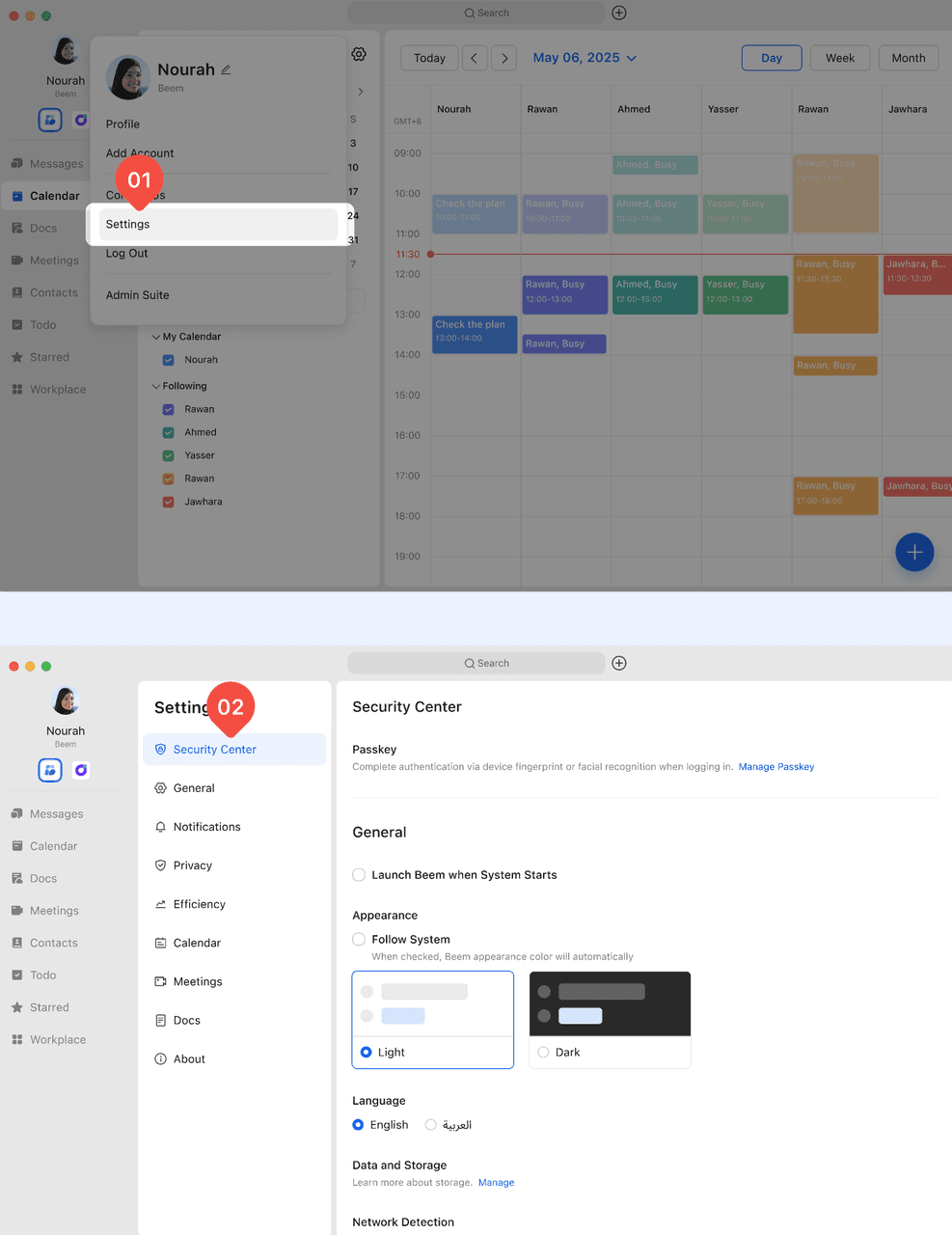
You can add a passkey from your account settings by following the steps below:
Go to Avatar → Settings → General → Security Center → Passkey.
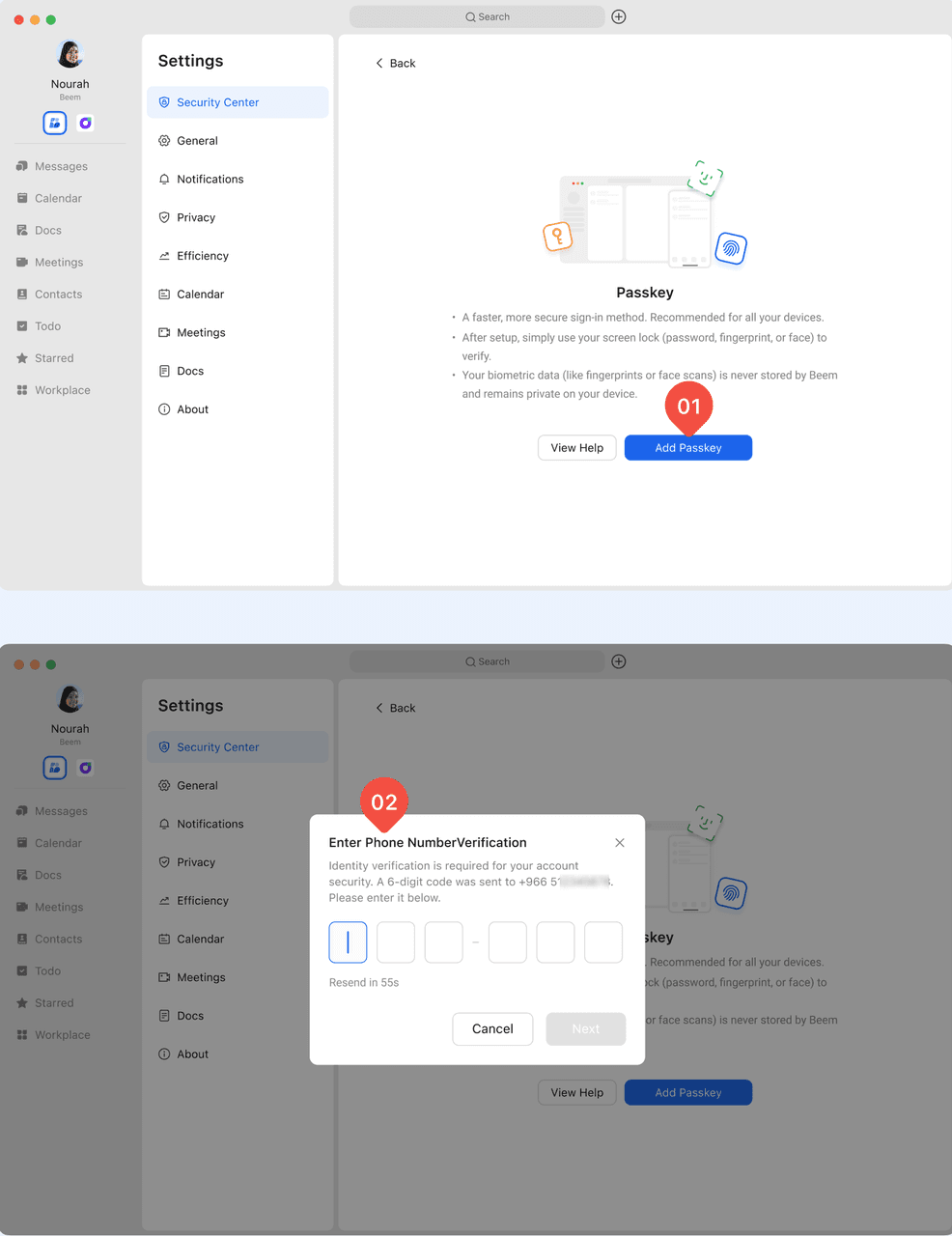
Tap Add Passkey
For security purposes, verify your identity using the mobile verification code first.
Verify passkey
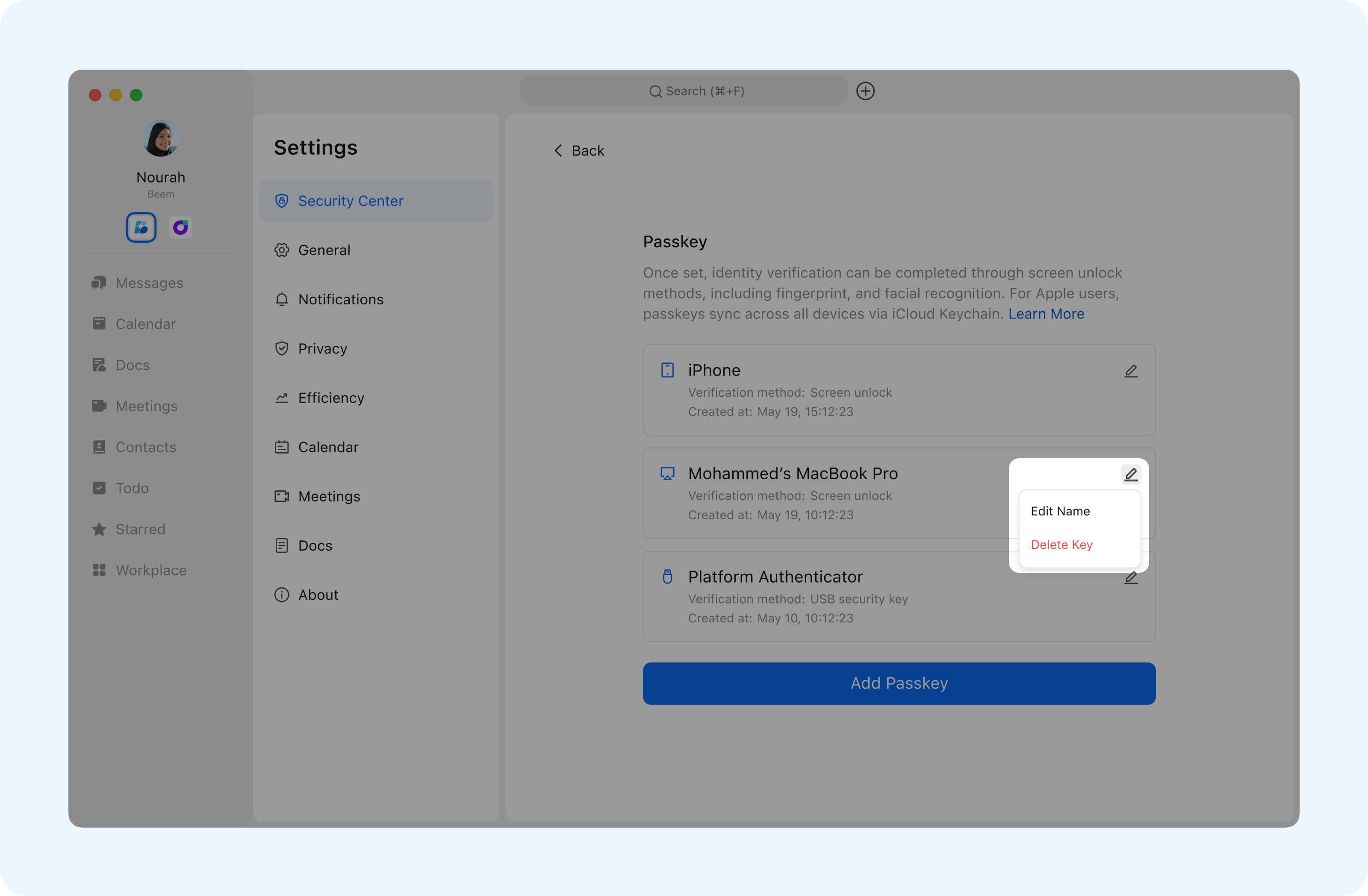
System passkey: Follow the in-app instructions to add your device's screen unlock method such as (facial recognition, fingerprint recognition, or the screen lock password) as a passkey.
Note: Using the system passkey must meet the following conditions:
The device and operating system support passkey functionality.macOS: Version 12.0+Windows: Version 10 (1809) or above.Beem version 3.3.0 or above is required.
USB Security Key: Click USB security key, insert and activate your USB security key, and then follow the in-app instructions to complete the addition.
Note:
Your biometric data (like fingerprints or face scans) is never stored by Beem and remains private on your device.
Different devices have different supported features. Refer to the actual user interface on your device when doing the following steps.
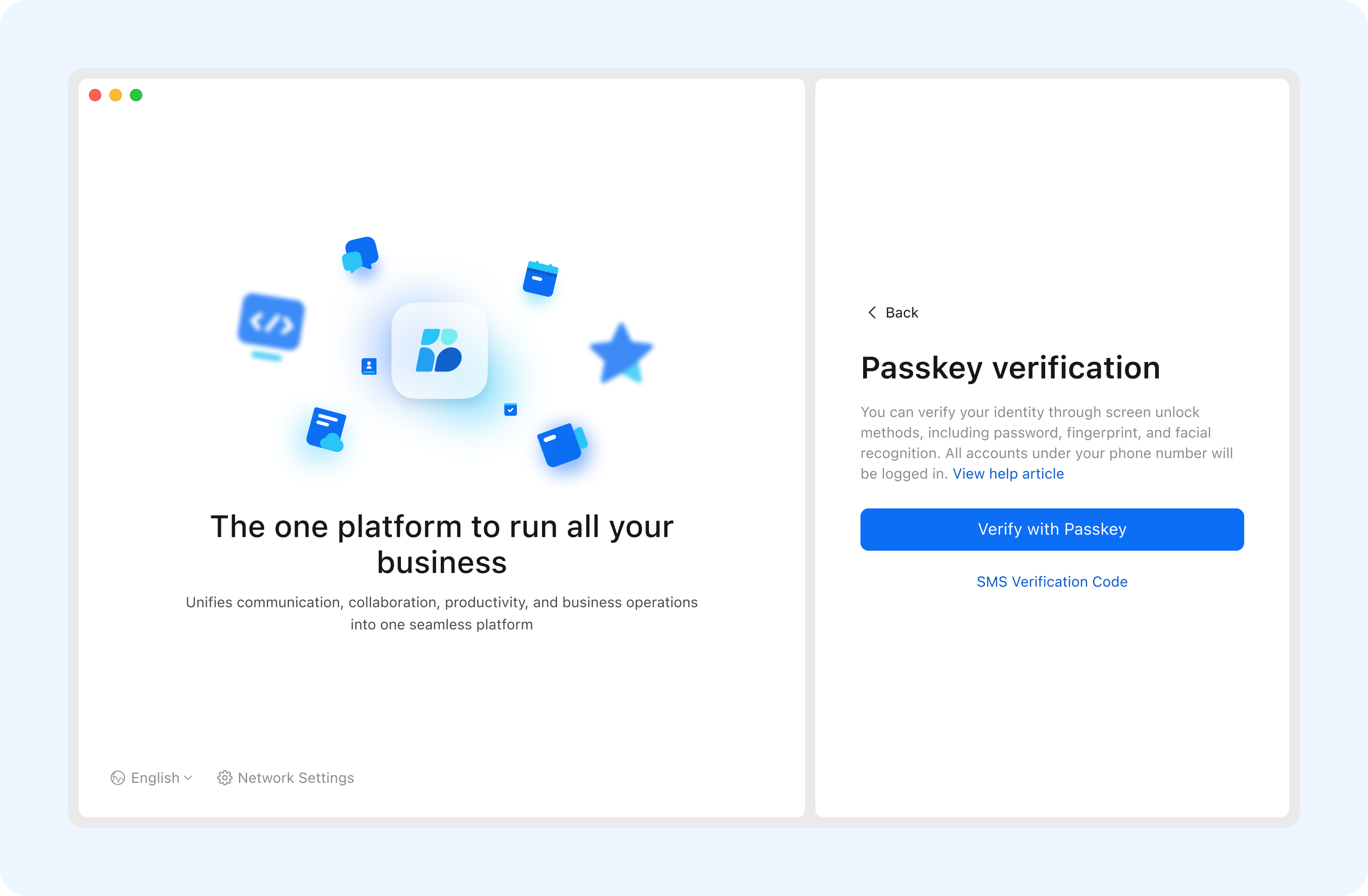
Enter your phone number. If you have added a passkey, you will be prompted to log in using passkey verification. Tap Verify with Passkey, and then complete verification to log in. All accounts under your phone number will be logged in.
You can also tap SMS Verification Code on the Passkey Verification page to verify identity.