access_timeEstimated reading time for this article: 5 minutes
Beem allows users to create and join multiple organizations using a single account, manage personal and enterprise accounts, and efficiently switch between them while staying organized.
Beem supports simultaneous login for multiple accounts with different phone numbers. This allows users to switch between accounts anytime to manage tasks efficiently.
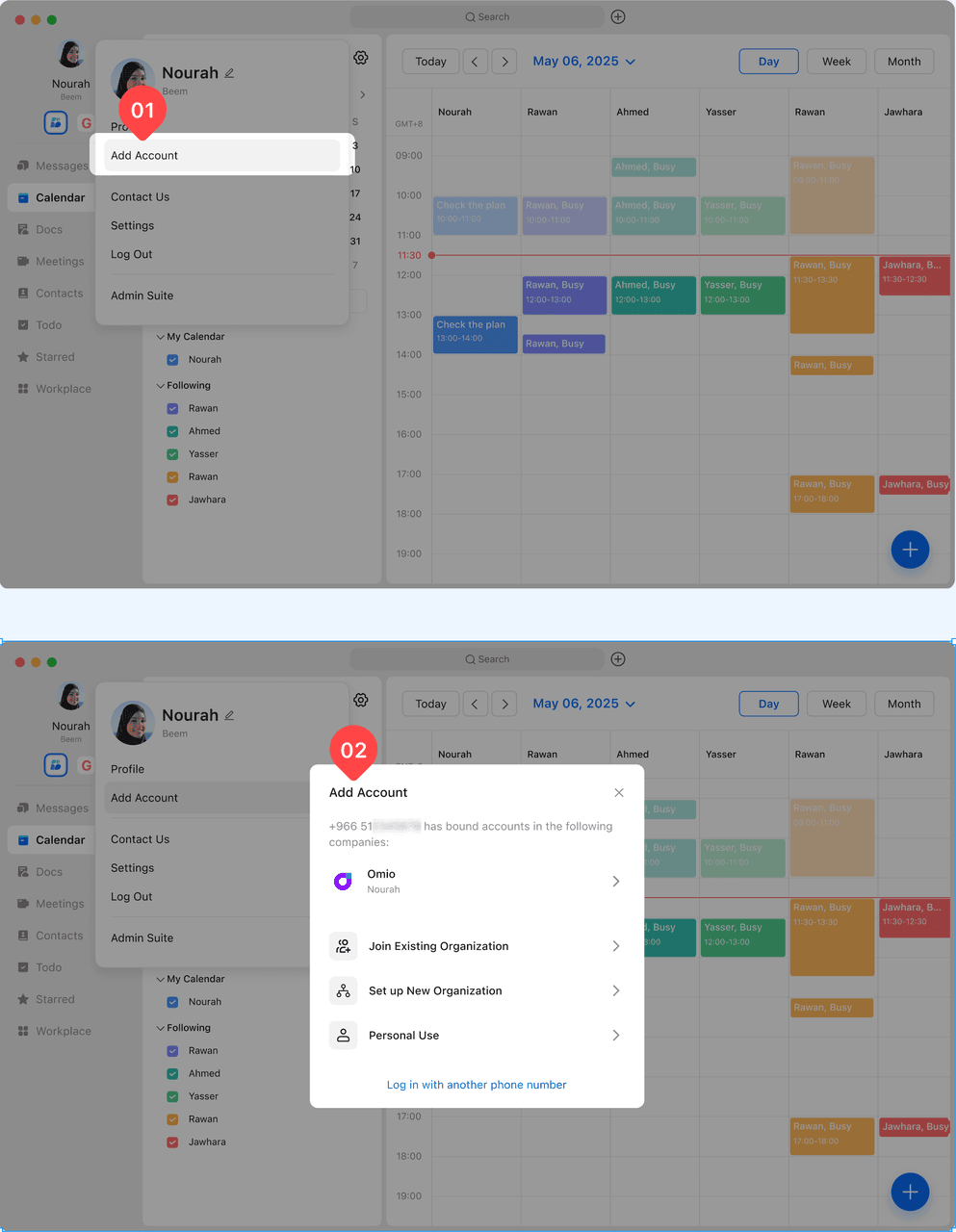
Click your profile picture from the sidebar to open the account menu, then select Add Account. From here, you can either log in to an existing Beem account or create a new one.
After adding accounts, all associated Beem accounts will be displayed clearly under your profile name and picture, allowing you to view and access them at a glance.
Select any account to switch instantly without logging out of your current session. Your workspace, chats, tasks, and files will update automatically based on the selected account.
You can continue adding more accounts at any time using the same method, enabling seamless management of multiple phone numbers and organizations within one interface.
Beem gives you full control over notifications when you are a member of multiple organizations. Cross-organization notification settings help you stay informed about what matters most, while reducing unnecessary interruptions from other organizations you may not need to monitor constantly.
Follow the steps below to configure how you receive notifications across different organizations:
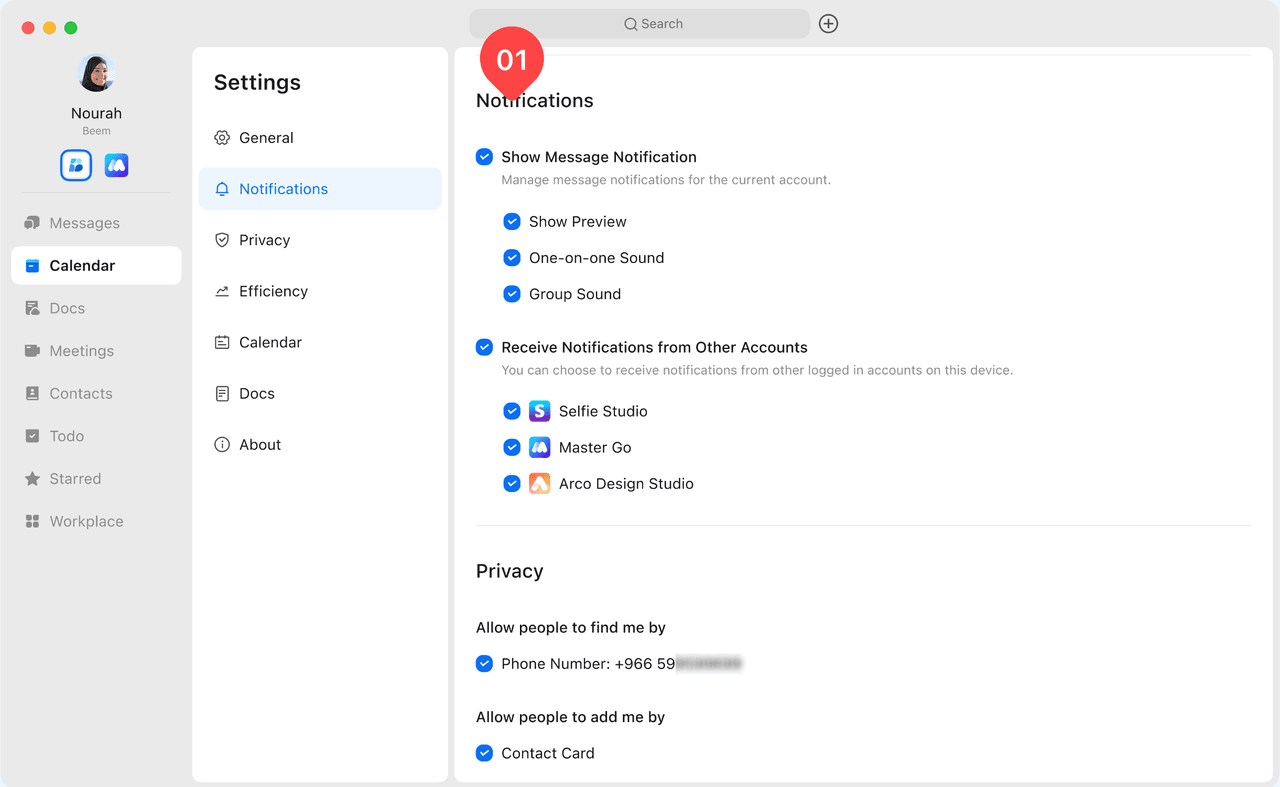
Go to Settings → Notifications → Multi-Org Notifications.
This feature is enabled by default to ensure you don’t miss important updates when joining multiple organizations.
Use the checkboxes to select the organizations you want to receive notifications from, and uncheck the organizations you prefer to mute.
Your changes take effect immediately, allowing you to fine-tune your notification experience in real time without restarting the app.
WARNING
Tip:
Enable notifications for your primary organization to stay aligned with daily tasks and urgent communications.
Disable notifications for secondary or inactive organizations to minimize distractions.
You can revisit and update these settings at any time as your work priorities change.